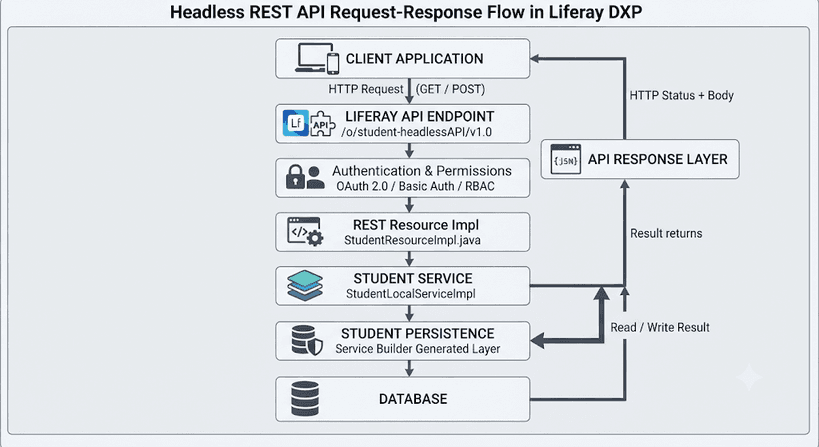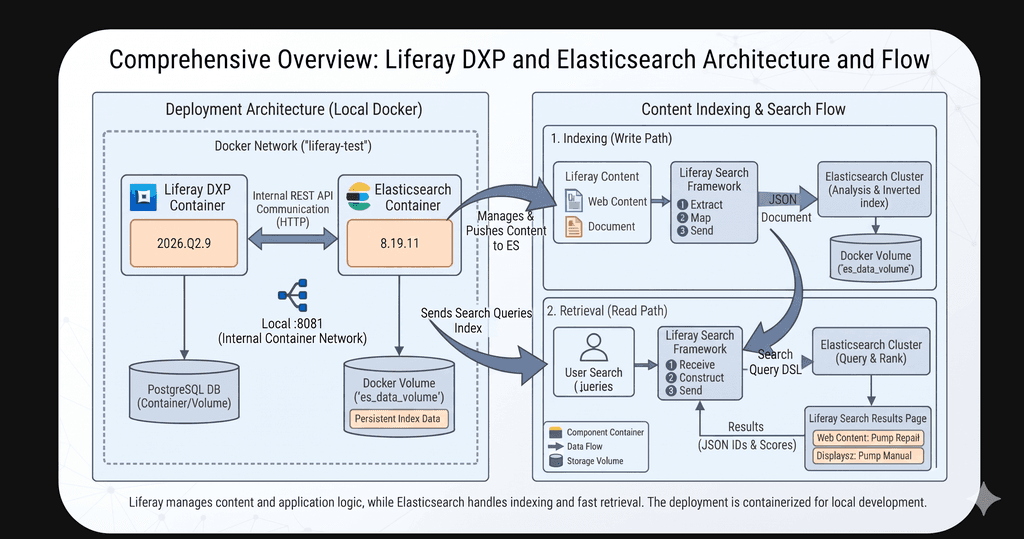
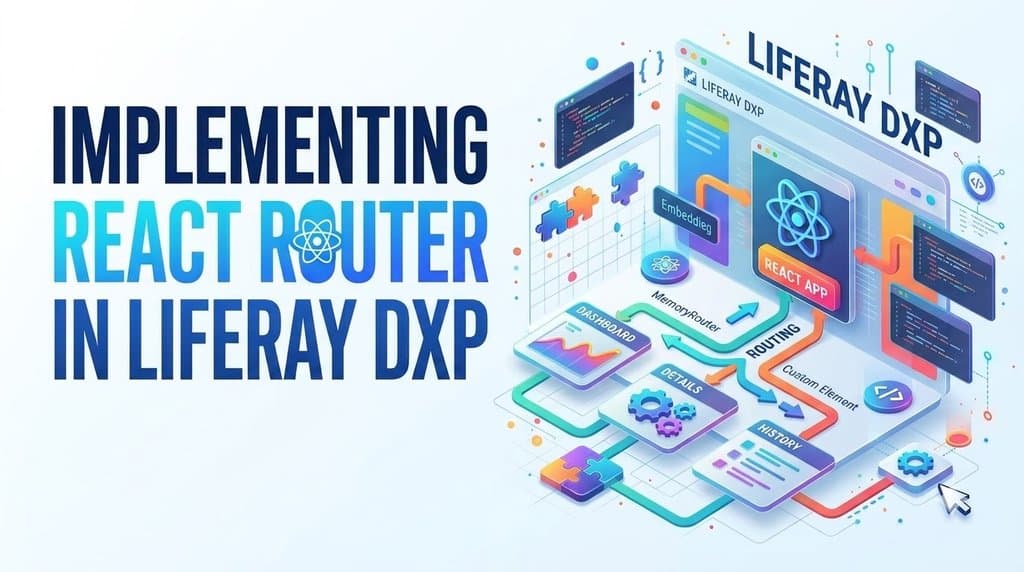
A step-by-step guide to managing navigation in React applications embedded in Liferay DXP using custom element client extensions.
Introduction
Modern web applications often contain multiple views, such as dashboards, detail pages, settings, and forms. As an application grows, managing navigation between these views becomes difficult if every view is controlled through conditional rendering.
React Router is a routing library for React applications. It allows developers to define routes, navigate between views, pass parameters through URLs, and organize application screens without reloading the entire React application.
When building React applications for Liferay Digital Experience Platform (DXP), routing requires additional consideration. A React application may run as a custom element client extension embedded within a Liferay page. Its navigation should work correctly without unintentionally changing the host page's URL or interfering with other widgets.
This article explains how React Router works, how to implement internal navigation, how to integrate a React application with Liferay DXP, and which practices help make routing more reliable.
1. Understanding React Router in Liferay DXP
What is React Router?
React Router connects URL paths or navigation states to React components. It helps developers organize an application into separate views and navigate between them.
For example, a maintenance application might contain these views:
- Dashboard
- Machine Details
- Maintenance History
- Settings
Instead of rendering every view in one component, developers can define a route for each view and let React Router determine which component to display.
What is a Liferay Custom Element Client Extension?
Liferay custom element client extensions allow frontend applications to be registered with Liferay and displayed as widgets on site pages. A React application can be built and hosted separately, then registered in Liferay with an HTML element name and the URLs of its JavaScript and CSS files.
When the widget is added to a page, Liferay renders the custom element and loads the application code. The application must declare the custom element and use a matching element name in its Liferay configuration.
Why does routing need special consideration?
A React application embedded in Liferay does not necessarily control the entire browser page. The browser URL may represent the current Liferay page, while the React application manages its own internal screens.
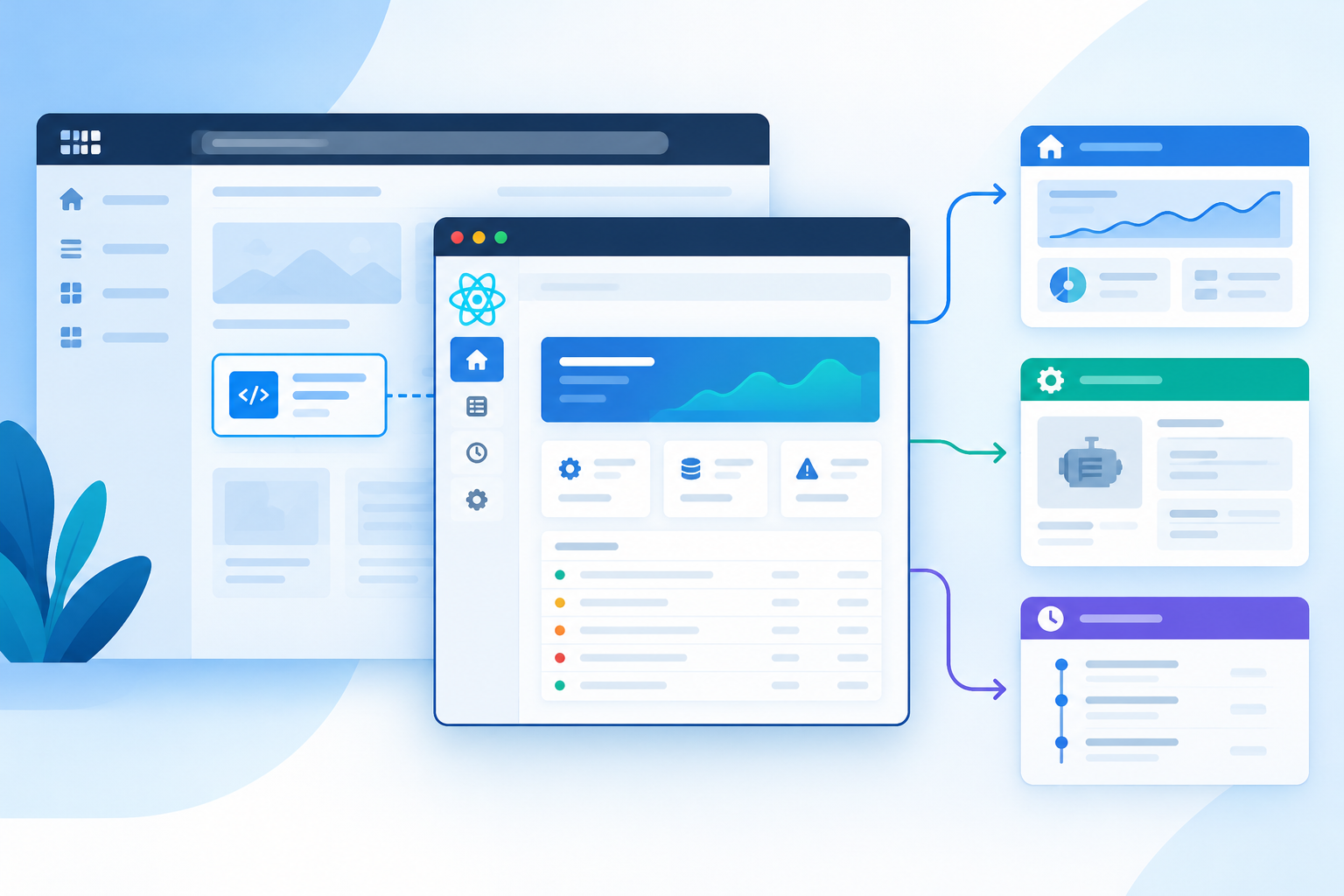
For example, a Liferay page might contain a maintenance widget with Dashboard, Machine Details, and History views. Navigating between those views should not unexpectedly take the user away from the Liferay page.
The routing strategy must therefore match the application's requirements, how it is embedded in Liferay, and whether its navigation needs to appear in the browser's address bar.
2. Choosing the Right Routing Strategy
React Router provides different router components. The correct choice depends on whether the application needs independent internal navigation, browser URL integration, or coordination with Liferay's routing infrastructure.
MemoryRouter
MemoryRouter maintains navigation history in memory rather than using the browser's address bar. It is useful when a React application needs internal navigation without changing the host page URL.
Common use cases include self-contained navigation inside a custom element, widgets embedded within existing Liferay pages, and applications where the internal route does not need to be directly shareable through the browser URL.
One limitation is that the internal route is not automatically preserved when the page is refreshed. The application returns to its initial route unless the state is persisted separately.
BrowserRouter
BrowserRouter uses the browser History API to manage navigation. It is appropriate when an application needs URL-based navigation, browser back and forward support, and shareable links.
When embedded inside Liferay, developers must consider how the application URL relates to the host page URL, how direct route access and refreshes are handled, and whether the application can safely own that URL space. Using BrowserRouter without considering these factors can result in unexpected navigation or route-refresh problems.
HashRouter
HashRouter stores the application's route in the URL fragment after the # symbol. For example:
https://example.com/page#/machines/1001
This approach can help separate client-side navigation from the server-side path. However, hash routing may conflict with other applications or platform features that also use the URL fragment.
Liferay-compatible routing
Liferay documents an approach in which a custom element client extension can use remote application properties to select which route or view is rendered at runtime. This is particularly useful when the same custom element is placed on a page more than once and different instances need different views.
Practical recommendation: Evaluate MemoryRouter for isolated internal navigation. If users need shareable URLs or browser history integration, evaluate URL-based routing and Liferay-compatible approaches before choosing the implementation. There is no single router that is automatically correct for every Liferay application.
3. Setting Up React Router
The following example demonstrates a small React application with three views: Dashboard, Machine Details, and Maintenance History. The example uses the React Router v7 declarative API. Check your project's installed version before using these commands and imports.
Step 3.1: Install the dependency
In the React application's project directory, install React Router.
Using npm:
npm install react-router
Using Yarn:
yarn add react-router
Use the package manager already configured for your project rather than mixing npm and Yarn.
Step 3.2: Create the application components
Create a file named App.jsx:
import {
Link,
MemoryRouter,
Route,
Routes,
useParams,
} from 'react-router';
function Dashboard() {
return (
<section>
<h2>Dashboard</h2>
<p>Welcome to the maintenance dashboard.</p>
</section>
);
}
function MachineDetails() {
const { machineId } = useParams();
return (
<section>
<h2>Machine Details</h2>
<p>Machine ID: {machineId}</p>
<p>View machine information and specifications.</p>
</section>
);
}
function MaintenanceHistory() {
return (
<section>
<h2>Maintenance History</h2>
<p>Review previous maintenance activities.</p>
</section>
);
}
function NotFound() {
return <h2>Page not found</h2>;
}
export default function App() {
return (
<MemoryRouter>
<nav aria-label="Application navigation">
<Link to="/">Dashboard</Link>
{' | '}
<Link to="/machines/1001">Machine Details</Link>
{' | '}
<Link to="/history">Maintenance History</Link>
</nav>
<main>
<Routes>
<Route path="/" element={<Dashboard />} />
<Route
path="/machines/:machineId"
element={<MachineDetails />}
/>
<Route
path="/history"
element={<MaintenanceHistory />}
/>
<Route path="*" element={<NotFound />} />
</Routes>
</main>
</MemoryRouter>
);
}
Step 3.3: Understand the code
The example uses the following React Router components and hooks:
- MemoryRouter maintains navigation history in memory.
- Link provides navigation between application views without a full-page reload.
- Routes selects the route that matches the current navigation location.
- Route maps a path to a React component.
- useParams reads dynamic values from a matched route.
- Wildcard route (*) displays a fallback for unsupported paths.
The route /machines/:machineId contains a dynamic segment. When the user selects the Machine Details link, the value 1001 is available through useParams() as machineId.
Separating each screen into a component makes the application easier to maintain as more functionality is added. This example demonstrates routing within a single React application. It does not, by itself, implement a Liferay custom element or configure Liferay's remote application properties.
4. Integrating the React Application with Liferay
After implementing the routes, the React application must be built, hosted, registered, and rendered through Liferay's custom element client extension.
Step 4.1: Build the React application
Use the build command configured in the project.
For npm:
npm run build
For Yarn:
yarn build
The build generates the production JavaScript and other assets required by the application. The exact output files depend on the project's build configuration.
Step 4.2: Host the application assets
Host the generated JavaScript and any required CSS at URLs accessible to the Liferay instance. For development, the files may be served from a development server. For deployment, use the hosting approach approved for the Liferay installation.
Verify that the asset URLs are accessible before registering the client extension. Liferay's documentation demonstrates uploading generated JavaScript and CSS files to Documents and Media for a sample application. In production, a server optimized for hosting static resources may be more appropriate.
Step 4.3: Register the custom element client extension
In Liferay DXP, the general registration process is:
- Open the Global Menu.
- Navigate to Applications → Client Extensions.
- Add a custom element client extension.
- Configure the HTML element name and the JavaScript and CSS URLs.
- Save the configuration.
- Add the resulting widget to a site page.
The HTML element name registered in Liferay must match the custom element declared by the application. The application must also follow the initialization requirements for its chosen custom element setup. React Router only handles navigation within the React application; it does not register the custom element or configure Liferay.
Step 4.4: Verify the application
Open the Liferay page containing the widget and verify the following:
- The React application renders successfully.
- Each navigation link opens the expected view.
- Navigation does not trigger an unintended full-page reload.
- The browser console does not report JavaScript errors.
- The widget continues to work alongside other page content.
- Navigation behaves correctly when multiple widget instances are present, if supported by the application.
Because the example uses MemoryRouter, its internal route is not reflected in the browser's address bar. Refreshing the page resets the in-memory navigation state unless the application separately persists that state.
5. Configuring Routes for Different Widget Instances
Liferay's custom element documentation describes using remote application properties to configure which route an application renders at runtime.
For example, an application may define hello-world, hello-foo, and hello-bar views and use a property named route to select the initial view. A simplified configuration could look like this:
route=hello-foo
The property can be configured through the Client Extensions interface or, where supported, through an individual widget's configuration. This is useful when the same custom element is placed on a page more than once and different instances need different initial views.
Important distinction: Liferay's route property is a configuration mechanism for the custom element example. It does not automatically configure the MemoryRouter routes shown earlier. If an application needs a configurable initial route, the application must read its configured property and map it to a supported view or internal route. The exact implementation depends on the custom element's property contract and routing design.
For the official Liferay example, refer to the documentation listed in the References section.
6. Common Routing Problems and Troubleshooting
Routing problems can occur when React Router and the Liferay host page do not share the same navigation assumptions.
| Problem | What to check |
| The widget does not render | Check the custom element name, JavaScript URL, browser console, and application initialization. |
| A navigation link displays no content | Confirm that the path matches a defined route and that the correct router wraps the application. |
| A dynamic route displays the wrong information | Verify the route parameter name and how useParams() is used. |
| Refreshing a route produces an error | Check whether the selected router requires server-side fallback configuration. |
| Navigation changes the Liferay page unexpectedly | Review whether the application should use MemoryRouter or a Liferay-compatible routing strategy. |
| Multiple widgets interfere with each other | Check whether each widget maintains independent routing state and whether they share browser URL state. |
| A configured route is ignored | Verify that the custom element reads the property and maps it to a supported view. |
Troubleshooting should begin by identifying which layer owns the navigation: React Router, the custom element, or the Liferay host page.
7. Best Practices
When implementing React Router in a Liferay client extension, consider these practices:
- Choose the router deliberately: Do not select BrowserRouter, HashRouter, or MemoryRouter without considering how the application is embedded.
- Keep components modular: Define separate components for dashboards, details, and other screens.
- Use valid route definitions: Ensure that navigation paths match the routes registered in the application.
- Handle unknown routes: Provide a fallback route for unsupported paths when appropriate.
- Use dynamic route parameters carefully: Validate route parameters before using them to retrieve application data.
- Avoid unintended host-page navigation: Test the widget inside Liferay, not only in a standalone development server.
- Test multiple instances: If the widget is instanceable, verify that its navigation behaves correctly when several instances appear on the same page.
- Keep authorization separate from routing: Hiding a route is not a substitute for enforcing access control on the underlying data and APIs.
- Follow Liferay's supported integration approach: For URL-based routing or shared navigation, consult the documentation for the Liferay version and custom element architecture in use.
Conclusion
React Router helps organize complex React applications into clear, maintainable views. When used with Liferay DXP custom element client extensions, the key challenge is choosing a routing strategy that works with the host page rather than treating the widget as an entirely independent website.
For simple, isolated widget navigation, MemoryRouter can be a useful starting point. Applications that require shareable URLs, browser history integration, or coordinated navigation should evaluate URL-based routing and Liferay-compatible approaches carefully.
By defining routes clearly, integrating the application correctly as a custom element, and testing navigation within Liferay, developers can build React applications that are easier to maintain and integrate more reliably into Liferay pages.
.png&w=3840&q=75)