Introduction
Elasticsearch is an essential component of Liferay DXP's search architecture. It enables efficient searching across web content, documents, pages, objects, and other searchable entities by maintaining a dedicated search index.
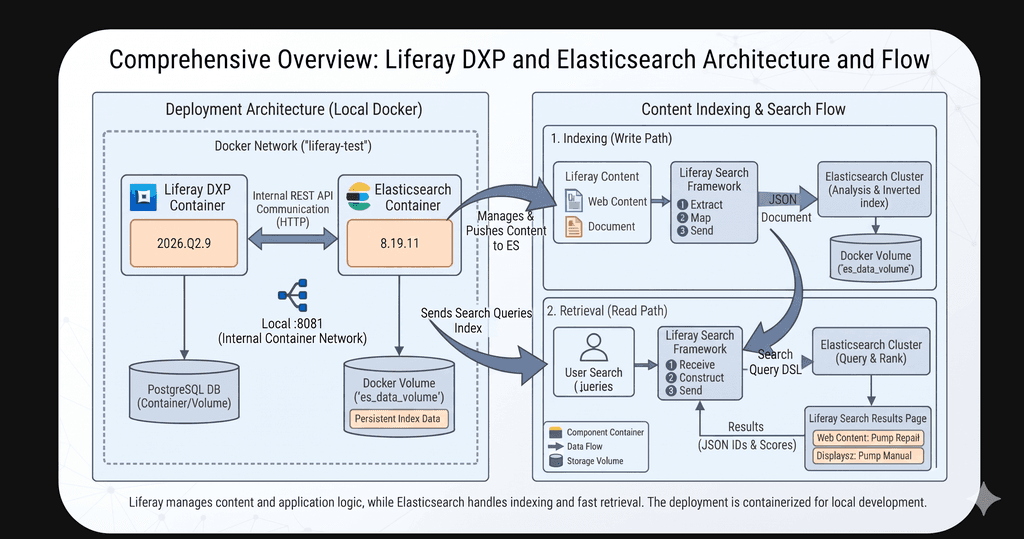
Liferay manages application data, metadata, permissions, and content operations, while Elasticsearch provides the search and indexing capabilities. In a typical deployment, the primary database stores application data, document storage retains file contents, and Elasticsearch maintains the indexes used for searching.
Ways to Connect Liferay to Elasticsearch
When deploying Liferay with Elasticsearch, you generally have two architecture approaches:
- Bundled Sidecar (Default/Development): Liferay provides a bundled Elasticsearch instance that runs alongside the portal. This is convenient for quick testing, but lacks independent resource management.
- External / Separate Server (Production & Advanced Dev): Elasticsearch runs completely independently (on a separate server, VM, or Docker container). This allows you to scale search resources independently, run a proper cluster, maintain separate monitoring, and decouple Liferay from the search lifecycle.
This guide focuses on setting up this external approach using Docker.
Why Use Docker for This Setup? (And Why It Is Simple)
When running Liferay and Elasticsearch together, managing separate software installations, Java versions, and configurations directly on your operating system can quickly become complex. Docker makes this exceptionally simple and clean because:
- Isolation: Both Liferay and Elasticsearch run inside their own lightweight, isolated containers without conflicting with your host machine (Windows 11).
- Easy Networking: Docker allows containers to talk to each other securely using simple container names over a shared custom network.
- Reproducibility: You can spin up, stop, restart, or wipe your entire development environment with single-line commands.
- Data Persistence: Using Docker volumes ensures that your search indexes are saved safely even if the Elasticsearch container is restarted or recreated.
1. Understanding Elasticsearch in Liferay DXP
What is Elasticsearch?
Elasticsearch is a distributed search and analytics engine that stores and searches structured and unstructured data through indexes. Liferay uses Elasticsearch to support its search functionality. Instead of scanning every content item for each search request, Liferay queries the search index to retrieve relevant results efficiently.
Common searchable content includes:
- Documents and Media
- Web Content articles
- Pages and other portal entities
- Custom Objects and application data
What is Indexing?
Indexing is the process of preparing and storing searchable representations of content in Elasticsearch. For example, when a user publishes a document named Pump_Repair_Manual.pdf, Liferay manages the original file and its associated metadata. Depending on the document's indexing configuration, searchable keywords are extracted and added to the Elasticsearch index.
What is Reindexing?
Reindexing rebuilds or updates the search index from the underlying application data. It is useful after certain configuration changes, index corruption, or when existing records need to be indexed again.
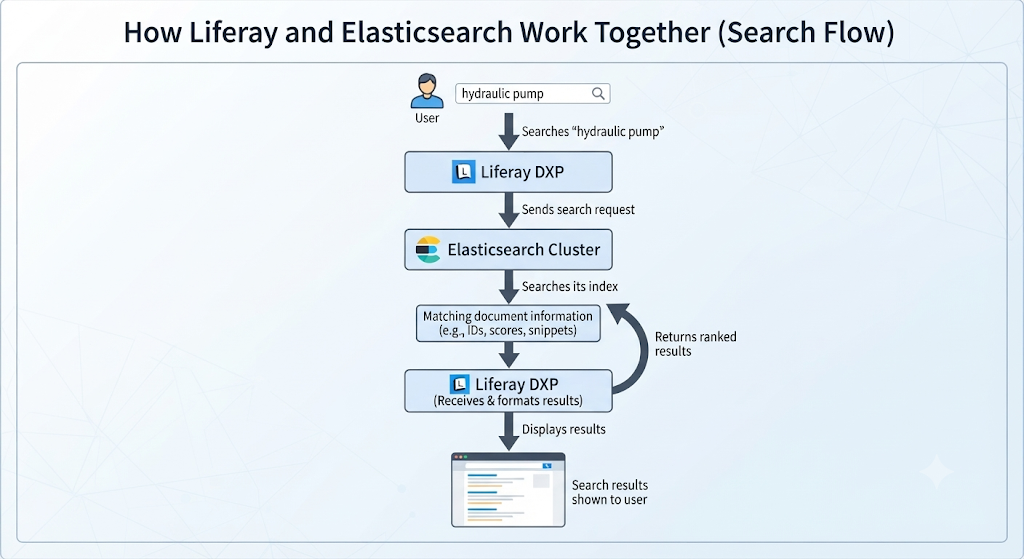
How Liferay and Elasticsearch Work Together (Search Flow)
When a user executes a search query, Liferay delegates text matching to Elasticsearch rather than scanning the database manually. The basic flow operates as follows:
2. Elasticsearch Instance, Cluster, and Connection
- Elasticsearch instance: A running Elasticsearch service.
- Elasticsearch node: A running Elasticsearch process that participates in a cluster.
- Elasticsearch cluster: One or more nodes working together to store and search indexed data.
- Elasticsearch connection: The configuration Liferay uses to communicate with an Elasticsearch endpoint, including its network address and security settings.
3. Local Docker Deployment Guide
Step 3.1: Create a Docker Network
A dedicated Docker network allows the Liferay and Elasticsearch containers to communicate using their container names. Run:
docker network create liferay-test
Step 3.2: Configure Persistent Elasticsearch Storage & Container
Create a named Docker volume so your search indices persist if the container stops:
docker volume create es_data_volume
Start the Elasticsearch container:
docker run -d ^ --name elasticsearch-test ^ --network liferay-test ^ -p 9200:9200 ^ -e discovery.type=single-node ^ -e xpack.security.enabled=false ^ -v es_data_volume:/usr/share/elasticsearch/data ^ docker.elastic.co/elasticsearch/elasticsearch:8.19.11
Step 3.3: Start the Liferay DXP Container
Run Liferay on the same shared Docker network:
docker run -d ^ --name liferay-test ^ --network liferay-test ^ -p 8081:8080 ^ liferay/dxp:2026.q2.9
Access Liferay at http://localhost:8081.
Step 3.4: Verify Network Connectivity
Verify that Elasticsearch is reachable from inside the Liferay container:
docker exec liferay-test curl http://elasticsearch-test:9200
A successful response returns the version (8.19.11) and cluster name (docker-cluster).
4. Configuring Liferay to Use External Elasticsearch
Step 4.1: Configure the Connection
Open the Liferay Control Panel and go to:
System Settings → Search → Elasticsearch Connections
Create a new connection with:
- Connection ID:
elasticsearch-test - Network Host Address:
http://elasticsearch-test:9200 - Authentication Enabled: Off
- HTTP SSL Enabled: Off
- Active: On
Leave username/password empty for this local setup and save.
Step 4.2: Switch Liferay to Elasticsearch 8
Navigate to:
System Settings → Search → Elasticsearch 8
Set Remote Cluster Connection ID to elasticsearch-test.
Enable Production Mode and save.
5. Troubleshooting & Installing Analysis Plugins
During initial reindexing, Elasticsearch may require text analyzers. Install the required language plugins inside the container:
docker exec -it elasticsearch-test bin/elasticsearch-plugin install analysis-icudocker exec -it elasticsearch-test bin/elasticsearch-plugin install analysis-kuromojidocker exec -it elasticsearch-test bin/elasticsearch-plugin install analysis-smartcndocker exec -it elasticsearch-test bin/elasticsearch-plugin install analysis-stempeldocker exec -it elasticsearch-test bin/elasticsearch-plugin install analysis-noridocker exec -it elasticsearch-test bin/elasticsearch-plugin install analysis-ukrainian
Restart Elasticsearch and Liferay after installing plugins:
docker restart elasticsearch-testdocker restart liferay-test
Verify the search engine component status via Gogo Shell:
scr:info com.liferay.portal.search.elasticsearch8.internal.ElasticsearchSearchEngine
Ensure dependencies show as SATISFIED and state is ACTIVE.
6. Indexing and End-to-End Testing
Go to Control Panel → Configuration → Search → Index Actions and trigger a full reindex for all search indexes.
Create a test Web Content article in Liferay (e.g., titled External Elasticsearch Test).
Verify the document count inside Elasticsearch:
docker exec elasticsearch-test curl "http://localhost:9200/liferay-31284520779231/_count"
Open http://localhost:8081/search, search for your text, and confirm that your content appears successfully.
7. Common Troubleshooting Checks
| ProblemWhat to Check | |
| Elasticsearch is unreachable | Verify the Docker network, container status, hostname, and port. |
| Connection fails from Liferay | Test curl http://elasticsearch-test:9200 inside the Liferay container. |
| Reindexing reports missing analyzers | Review logs and install required analysis plugins. |
| Search results are missing | Verify that the content is published, indexed, and searchable. |
| Elasticsearch data disappears | Confirm that the named Docker volume (es_data_volume) is properly mounted. |
Conclusion
Integrating external Elasticsearch with Liferay DXP using Docker separates the search service from the application container, allowing it to be managed independently. Liferay handles content and application flow, PostgreSQL handles core app data, and Elasticsearch maintains fast search indexes.This containerized local workflow provides a clean, reliable foundation that mirrors production-grade search practices.